How to Disable Right-Click and Keyboard Shortcuts on Your Website
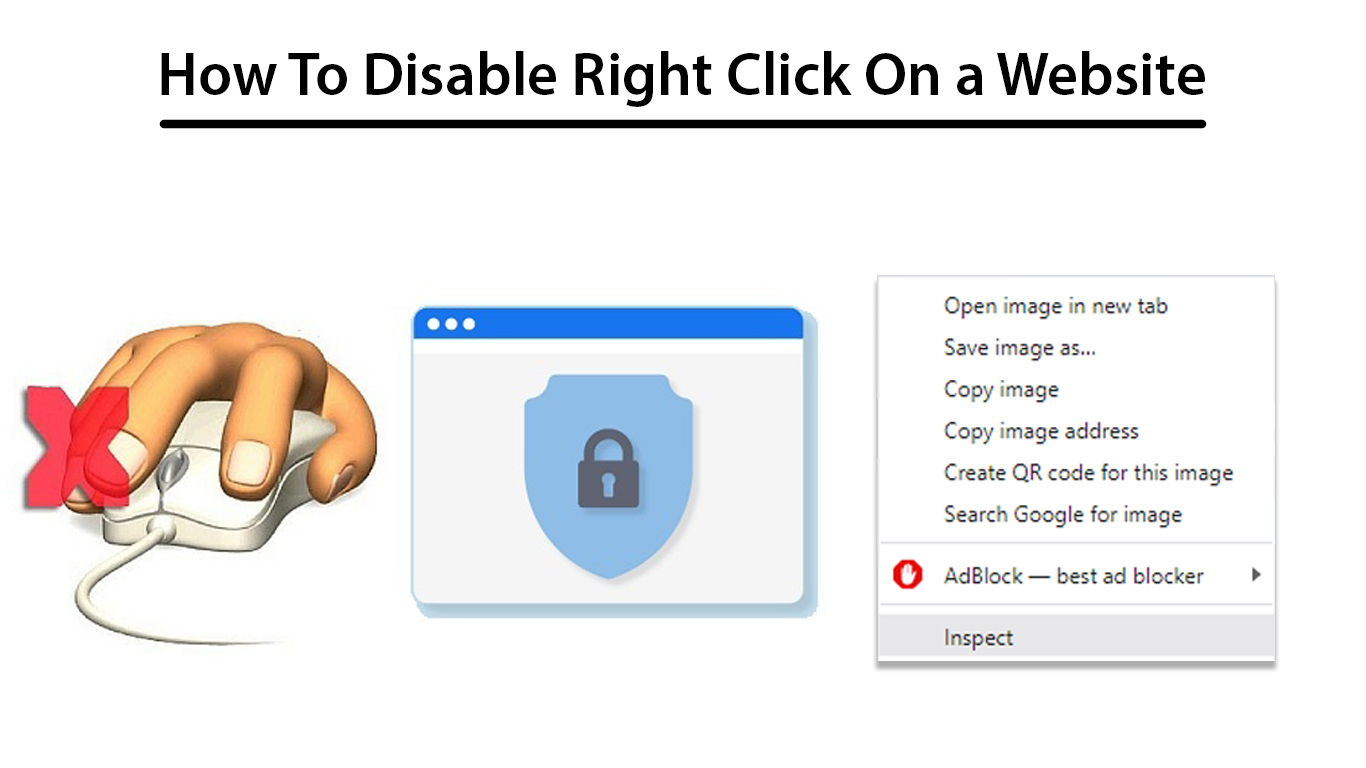
Learn how to effectively disable right-click, block common keyboard shortcuts, and prevent text selection on your website using simple CSS and JavaScript techniques — protecting your content from casual copying and unwanted actions.
Protecting your website content from casual copying or unwanted user actions like right-clicking or inspecting the source code is a common request. While no method can fully stop determined users, disabling right-click and common keyboard shortcuts can discourage most visitors from copying your content.
In this post, I’ll show you a simple and effective way to:
-
Disable right-click context menu
-
Block popular keyboard shortcuts (like Ctrl+U, F12, Ctrl+Shift+I)
-
Prevent text selection on double-click or drag
-
Disable keyboard text selection (Shift + Arrow keys)
Why Disable Right-Click and Shortcuts?
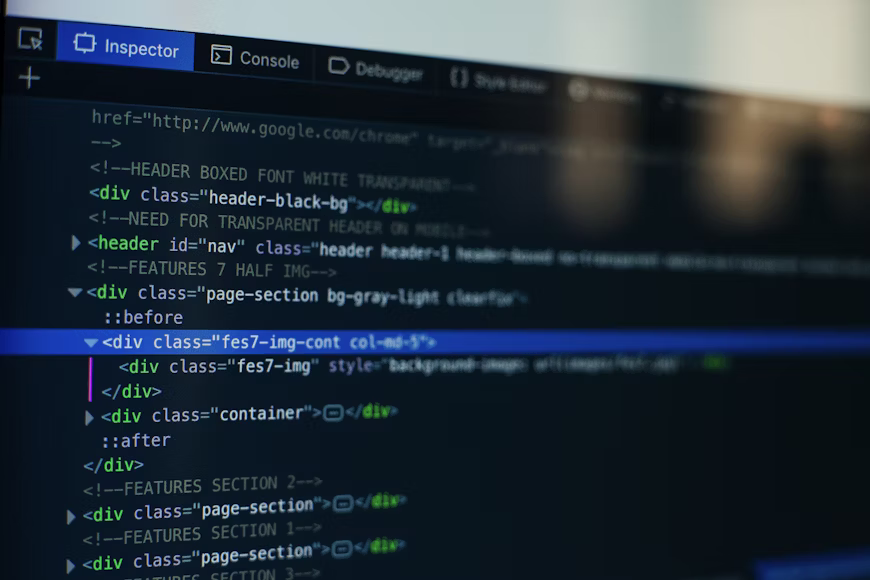
Right-clicking allows visitors to open the context menu and inspect elements or save images. Keyboard shortcuts like Ctrl+U open the page source, and F12 opens Developer Tools.
Disabling these features can:
-
Deter casual content scrapers
-
Protect images from easy saving
-
Keep visitors focused on your content
The Complete Solution: CSS + JavaScript
You need to combine CSS to disable text selection and dragging with JavaScript to block right-click and keyboard shortcuts.
Step 1: Disable Text Selection and Dragging with CSS
Add this inside your <head> tag or your main stylesheet:
   <style>
        /* Prevent all user text selection */
        body {
            -webkit-user-select: none; /* Safari, Chrome */
            -moz-user-select: none;    /* Firefox */
            -ms-user-select: none;     /* IE/Edge */
            user-select: none;         /* Standard */
            cursor: default;           /* Optional: show default cursor */
        }

        /* Prevent dragging images, links, and other elements */
        img, a, span, div {
            -webkit-user-drag: none;
            user-drag: none;
        }
    </style>
Step 2: Disable Right-Click and Keyboard Shortcuts with JavaScript
Place this script just before your closing </body> tag:
   <script>
        // Disable right-click context menu
        document.addEventListener('contextmenu', function(e) {
            e.preventDefault();
        });

        // Disable keyboard shortcuts
        document.addEventListener('keydown', function(e) {
            const key = e.key.toLowerCase();
            const ctrl = e.ctrlKey;
            const shift = e.shiftKey;

            if (
                e.key === "F12" ||                             // F12
                (ctrl && key === "u") ||                       // Ctrl+U
                (ctrl && shift && key === "i") ||             // Ctrl+Shift+I
                (ctrl && shift && key === "j") ||             // Ctrl+Shift+J
                (ctrl && shift && key === "c") ||             // Ctrl+Shift+C
                (ctrl && key === "s") ||                       // Ctrl+S
                (ctrl && key === "p") ||                       // Ctrl+P
                (ctrl && key === "a") ||                       // Ctrl+A
                (ctrl && key === "x") ||                       // Ctrl+X
                (ctrl && key === "c") ||                       // Ctrl+C
                (ctrl && key === "v")                          // Ctrl+V
            ) {
                e.preventDefault();
                return false;
            }

            // Block text selection via keyboard (Shift + arrow keys)
            if (shift && (
                key === "arrowleft" ||
                key === "arrowright" ||
                key === "arrowup" ||
                key === "arrowdown"
            )) {
                e.preventDefault();
            }
        });

        // Disable double-click text selection
        document.addEventListener('mousedown', function(e) {
            if (e.detail > 1) {
                e.preventDefault();
            }
        });
    </script>
Important Notes
-
This method cannot completely prevent tech-savvy users from accessing your code or copying content.
-
It works well to deter casual visitors.
-
Overusing these protections might hurt accessibility or user experience, so use thoughtfully.
Final Thoughts
With just a few lines of CSS and JavaScript, you can add a solid layer of protection to your website, making it harder for visitors to right-click, inspect, or copy your content easily.




0 Comment's
Add Comment
Register to Reply